01
Free a blocked development port
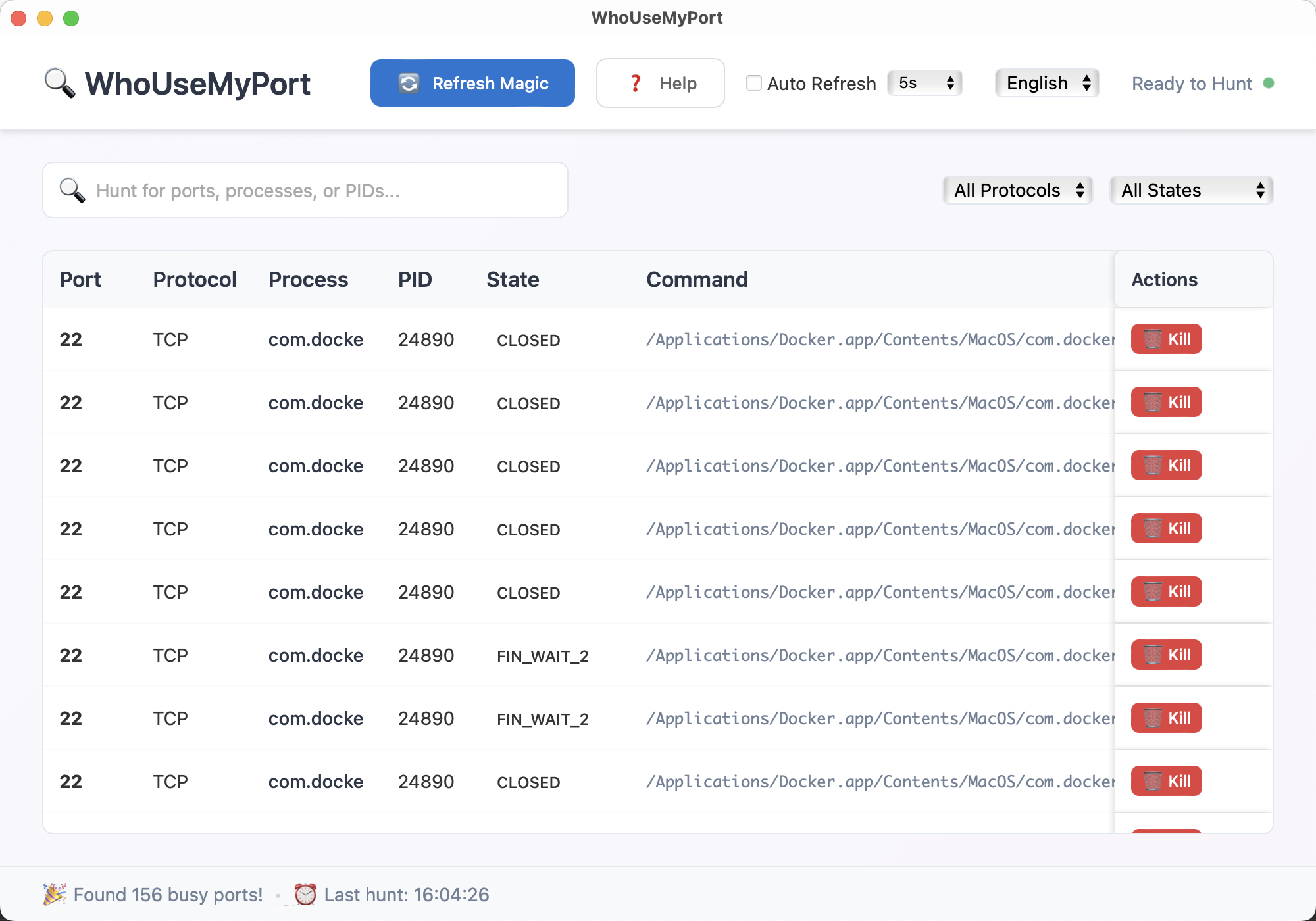
Search for a familiar port such as 3000, 5173, 5432, 6379, or 8080 and immediately see the owning process, PID, state, and full command line.
WhoUseMyPort is a focused Windows and macOS app for developers and system administrators who need a fast answer to one question: what is bound to this local port right now? The app scans the current socket table, resolves the owning PID and command, and lets you terminate the process when your operating system allows it. The repository also documents a structured OpenClaw workflow for source builds that need an agent-assisted second pass.
This site exists to explain how the app works, where the downloadable builds come from, and when the GUI is the faster option than jumping between lsof, netstat, and process management commands.
Search for a familiar port such as 3000, 5173, 5432, 6379, or 8080 and immediately see the owning process, PID, state, and full command line.
Filter by protocol and state to separate long-lived listeners from short-lived client connections or sockets that are already closing.
WhoUseMyPort surfaces the process name and command so you can tell the difference between a safe local dev server and something you should leave alone.
The product does not perform remote scans or network probing against other hosts. It reads the current machine's local socket data and resolves it back to the corresponding process information on the same system.
The current macOS build reads live socket information through lsof -i -P -n. That keeps host lookup out of the path and prioritizes a readable local result set.
The Windows build reads netstat -ano, parses the local address table, and then resolves additional process details for each PID.
Terminating a process is an explicit user action. Whether the action succeeds depends on the permission model of the operating system and the target process.
These are the cases this site documents because they come up repeatedly in real development and operations work.
Search the expected port, inspect the command column, then decide whether to stop the stale process or restart the owning app normally.
Check whether the socket is still in LISTEN, already closing, or tied to a second service instance before changing configuration.
Use the built-in auto-refresh intervals and state filters when you want to keep an eye on short-lived local connections without re-running commands manually.
The site currently publishes Windows and macOS binaries. Linux build targets exist in the repository workflow, but there is no public Linux binary on this website yet.
Direct desktop binary for Windows 10 or later.
Download for WindowsFile hash and verification details are listed on the release notes page.
Universal macOS disk image for Intel and Apple Silicon on macOS 10.15 or later.
Download for macOSRead the support page before bypassing any operating-system security warnings.
Alongside the public downloads, the repository now ships a dedicated OpenClaw skill and a structured export flow in the current source build. The public binaries listed below remain version 1.0.0 until the next published build refresh.
OpenClaw can load whousemyport-port-diagnostics directly from the repository workspace, or you can download the raw SKILL.md file from this website.
The current desktop source build can copy the active view as structured text, including filters, PID, state, protocol, and command fields.
Structured rows make it easier to tell whether port 3000 is a listener, a transient client connection, or the wrong process entirely.
The website is intentionally structured as more than a single download screen. Every page exists to answer a real product, support, or policy question.
Step-by-step help for reading the table, filtering results, understanding socket states, and deciding whether it is safe to terminate a process.
Learn how the bundled skill, direct SKILL.md download, shared installer, and structured export path fit together when you want agent help for a blocked localhost port.
Installation notes, macOS and Windows permission issues, known limitations, and what to include when you email for help.
Current public file versions, file sizes, SHA-256 hashes, and a changelog for the website and desktop builds linked here.
Explains what stays local in the desktop app, what the website may log, and how Google ad technologies would be disclosed if enabled.
Describes the scope of WhoUseMyPort, the editorial standard for this site, and how support and monetization are handled.
Email the maintainer with your operating system version, port number, and an OpenClaw report or screenshot if you need help reproducing a problem.
No. The current product is for the local machine you are using directly. It reads the local socket table and maps that data back to local processes.
Basic inspection may work without elevated rights, but terminating protected processes or reading some details can require administrator or system approval depending on the operating system.
The desktop UI supports protocol and state filters, search by port or process details, sortable columns, and auto-refresh intervals for repeated checks.
The repository now includes a dedicated OpenClaw skill plus a structured report export in the current source build. The setup steps and release status are documented on the OpenClaw page.
The app is designed to process port and process data locally. Website privacy, email support, and any future ad-related disclosures are covered in the privacy page.
No. The site is structured around product explanation, support, privacy, release notes, and contact information. Advertising, if added later, is secondary to those functions.